Rise of the Ronin intrigued me with its robust Souls-like combat and engaging gameplay, but after tinkering with the settings, it became one of my favorite games. Here’s what I found to be the best settings in Rise of the Ronin to elevate your experience tenfold!
Rise of the Ronin optimal settings
Below, you’ll find the optimal configuration that will suit the majority ofRise of the Roninplayers, regardless of their experience and skill level. If this exact configuration doesn’t suit you, you’re free to choose the settings you like and combine them with your own.
To access these settings, open theOptionsmenu from the main menu screen or pause the game and selectSystem. I recommend the former since specific options are only available while you’re not in the game world.

Best Game Settings
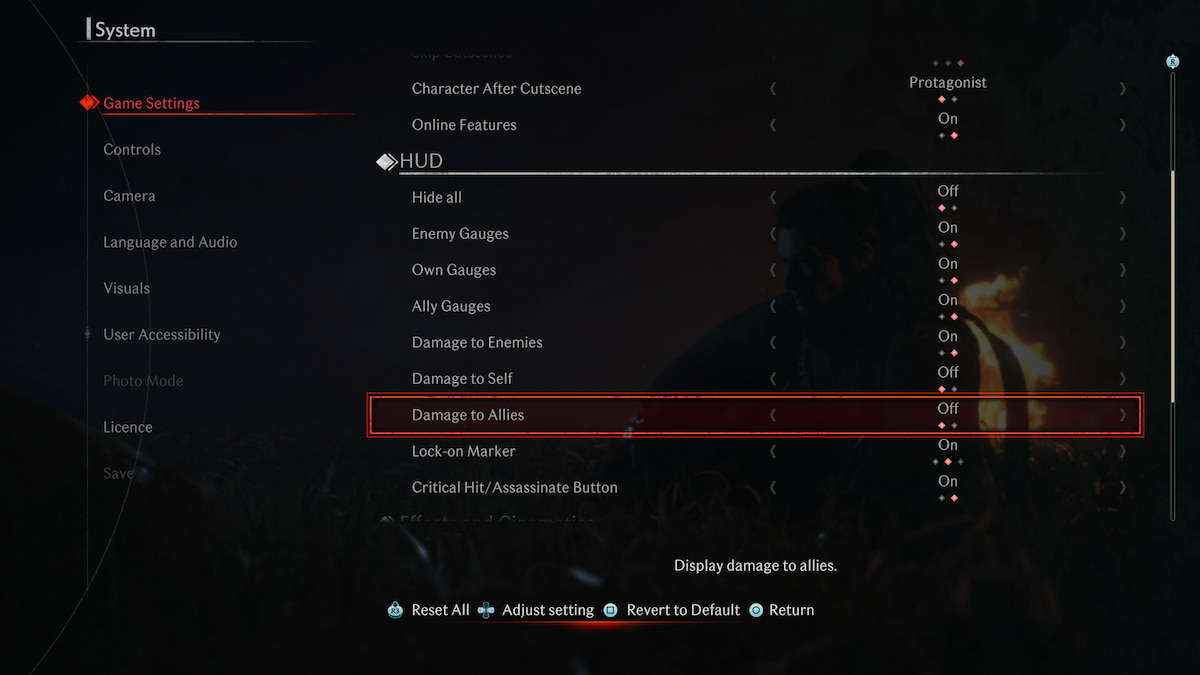
First things first. Open theGame Settingsmenu, go down toHUD,and turn on theCritical Hit/Assassinate Button. In the same submenu, verify to turn on theDamage to Enemiesoption as well.
These options allowed me to properly execute a critical hit and keep track of how much damage I was dishing out. Additionally, you can turn onDamage to SelfandDamage to Allies, but I found these more of a nuisance than helpful. To each his own!
Best Controls Settings
Go toControls, selectController Mappingin theGameplaysubmenu, and switch the settings toHold to Sprint. This control scheme switches sprinting to L3 while using the Circle button for dodging.
Related:All Combat Stances in Rise of the Ronin, Explained
This is the command scheme I’m most familiar with. During combat, I had trouble going into a sprint since I often activated the dodge command instead, and the Hold to Sprint setting fixes this issue.
If you feel like it, go to theInput Methodsection and set theHold Timesetting to2or3. It’s not a game changer, but reducing the time required to hold the button helped me ingest Medicine Pills faster, open chests, and collect materials.

Speaking of collecting, make sure to switchAuto-Collect ItemstoOnin theControl Assistsection. Before sprinting away, I tend to forget about collecting loot from fallen enemies, and this option remedies that issue.
Best Camera Settings
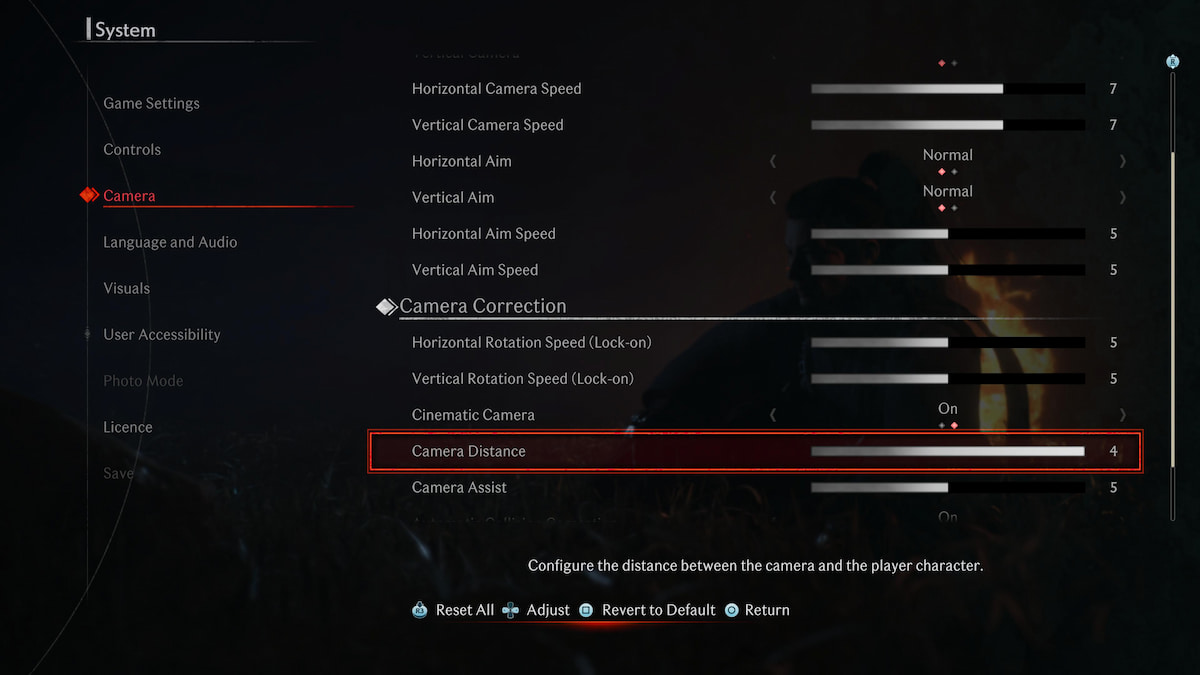
The default camera settings are fine on their own, but why not make them better? Go toCamera Controlsand then increaseHorizontal/Vertical Camera Speedto6or7. You’ll immediately feel the difference when dealing with multiple enemies or trying to sneak around undetected. The increased camera speed improved my responsiveness and sped up exploration significantly.
For added visibility, increase theCamera DistanceunderCamera Correction. Combat advantages aside, the bigger camera distance lets you fully appreciate the game’s beautiful and lush environments.
Best Language and Audio Settings
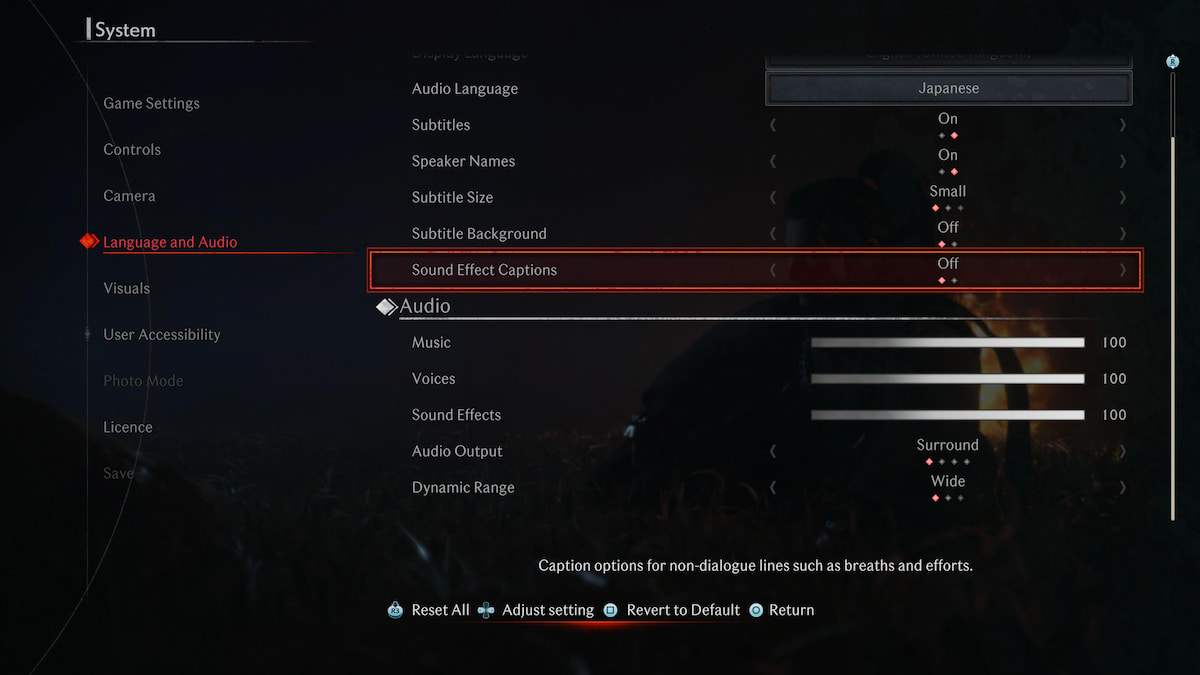
In the Audio submenu, find the Audio Output setting and switch it toSurround Soundif you’re using TV speakers or3D Audio Effectsif you’re using headphones. With this setting changed, I had a much easier time sneaking around and assassinating enemy warriors since I could hear their footsteps in my vicinity.
Related:Dead Samurai Cheat Codes
Optionally, go to theLanguagesubmenu and change theAudio LanguagetoJapanesefor the most immersive feudal Japan experience. Don’t worry—you can still turn the subtitles on to understand what the NPCs are saying!
Best Visuals Settings
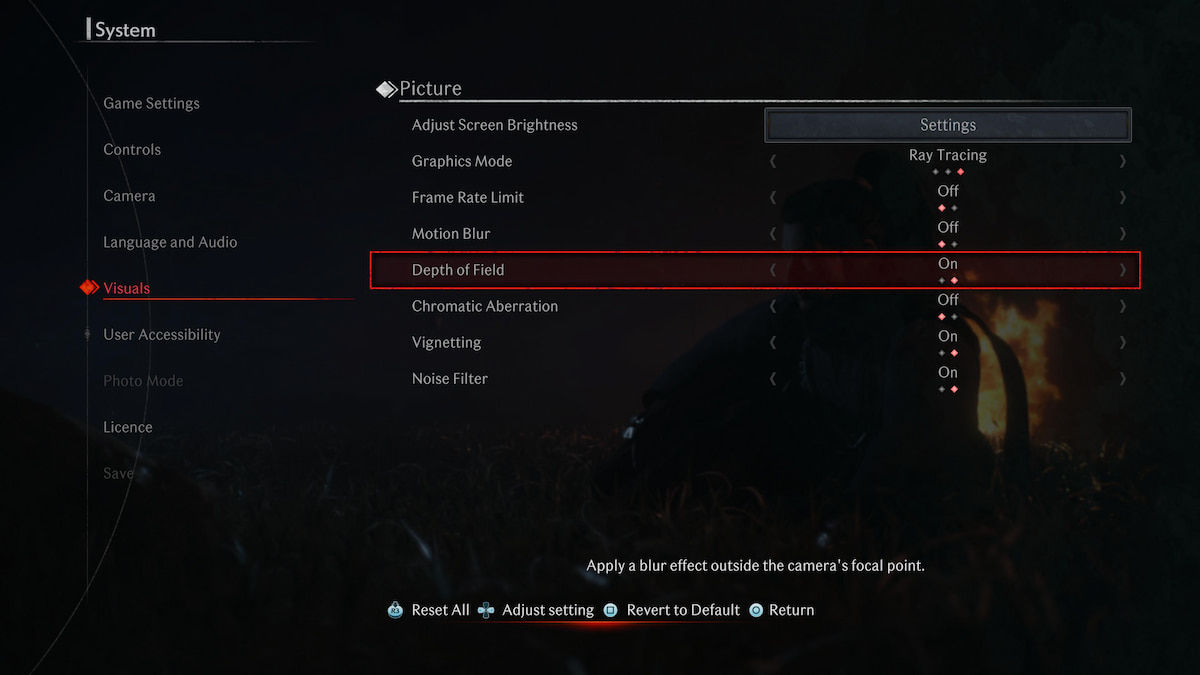
Hold onto your kimono belt; it’s time for some controversy. Under Picture, set the Graphics Mode toPrioritizeFPSor combineRay Tracingwith theFrame Rate Limitturned off. Prioritizing graphics doesn’t justify the 30-fps cap since you’re not getting a substantial visual improvement, and a better frame rate helps significantly during combat.
If you can’t decide between graphics and performance, go for ray tracing without the frame rate limit. You’ll still get gorgeous visuals with minimal frame rate drops. Regardless of your choice, ensure toturn off Motion Blur. It takes away from the luscious landscapes, and I couldn’t spot some of the collectible materials while running around Yokohama.
Finally, turn off Chromatic Aberration if you’re not a fan of the rainbowy lens flare effect. In my opinion, it clashes with the color palette of the game and takes away from the overall visual experience.
To learn about how weapons stack up in the game, check outRise of the Ronin Weapons Tier Liston Pro Game Guides.